

Orcle · Premium alpha
Orcle is a one-of-a-kind co-host AI
It does not exist in any other app. Only in Videorc. A co-host AI sits with you in Comments: it watches live chat, groups questions, flags problems, and drafts replies you approve, while you stay on camera.
Why Orcle exists only in Videorc
Does not exist in any other app
Orcle is a one-of-a-kind co-host AI. You will not find it in OBS, Restream, StreamYard, or anywhere else. It lives only in Videorc.
A producer, not a bot
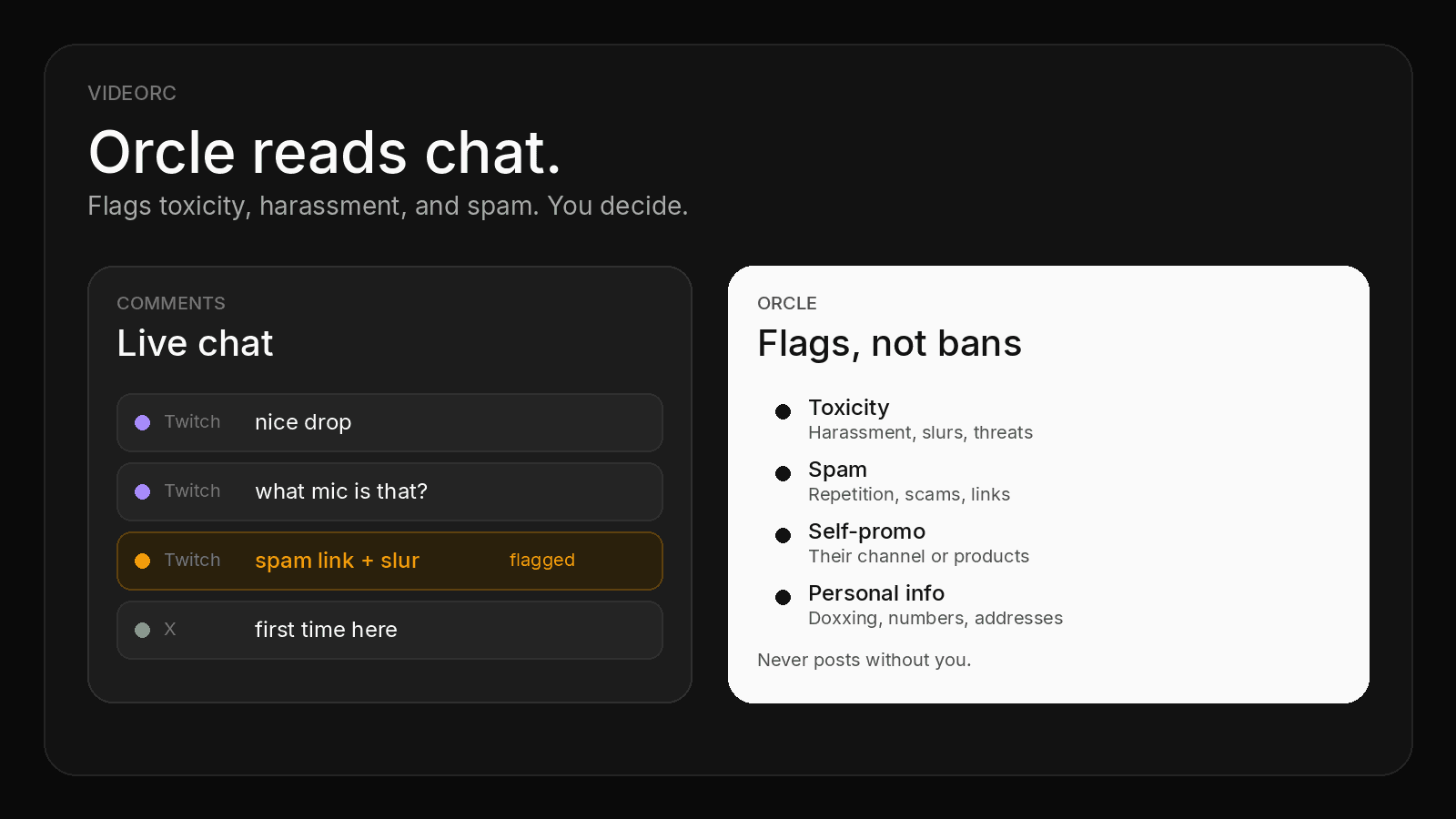
It never posts to chat and never acts on its own. A flag is a look. A draft is a suggestion. It removes a comment only when you tell it to, and never times out or bans anyone.
Watches chat while you talk
The Orcle pane sits in Stream Manager, next to your chat in the Comments window. It groups questions, flags problems, and prepares what you need next.
What a co-host AI does in Videorc
Orcle is a one-of-a-kind co-host AI. These are the jobs it actually runs in the Orcle pane and the Orcle tab, not a wishlist.
- 01
Groups the questions people are actually asking
Repeats collapse into one item with a suggested reply. Reply prefills the composer. You send it, edit it, or ignore it. Mark a question answered, or dismiss it.
- 02
Flags the lines that need a look
Toxicity, spam, self-promo, and personal info. Add your own chat rules, like no spoilers. It skips ordinary banter and mild profanity. You still decide.
- 03
Knows when you answered on air
With listening on, Orcle matches what you say to open questions. It marks Talking about this while you answer, then resolves the question when you actually did. Restore it if the call was wrong.
- 04
Hears you while you are live
Optional. Your microphone goes to Videorc cloud speech-to-text, even with live captions off. Servers do not keep the audio. If you record, the transcript stays on your computer.
- 05
Remembers what you promised, and who just arrived
Orcle tracks concrete promises you said out loud, drafts a recap when chat asks what they missed, marks on-topic questions, and nudges you to say hi to first-timers. A private toast can also break dead air when a question is waiting. It tells you when chat says your audio broke.
- 06
Shows a question on the stream
Put the selected question on stream yourself, or let Orcle do it for what you are talking about, and optionally for its own picks. Off stays off.
- 07
Takes voice commands
Say “Orcle, highlight the comment from coders X” and it goes on stream. Say “this one is toxic, remove it from our chat” and Orcle shows you the comment, then removes it when you confirm.
- 08
Leaves a report after every stream
Orcle saves a short report on your computer: questions caught and missed, flags, promises, first-timers greeted, and the moments you marked by saying clip that.
- 09
Notes, tone, and clip that
Write facts Orcle may answer from. Pick a reply tone: friendly, short, or professional. Say clip that while you record, and the moment lands in your stream report in the Orcle tab.
- 10
Edits your recordings, too
Clean cut lives in the same Orcle tab. Stop recording, and the edited version is already there, with silences, ums, false starts, and retakes removed. Your original stays untouched. Condensed turns a long stream into about 15 minutes.
Talk to Orcle
Ask Orcle to put a comment on stream, take it down, or remove it from chat. It acts only when you ask.
Start with “Orcle”
Say its name first: “Orcle, highlight the comment from coders X.” Two phrases also work without the name, out of the box: “remove it from our chat” (or “delete this one”) and “highlight the comment from coders X”. To always require the name, turn on Commands need “Orcle” first.
Highlight
- “Orcle, highlight the comment from coders X”
- “Orcle, put this one up”
- “Orcle, show the last comment”
- “Orcle, show coders X’s question”
Puts that comment on your stream.
Clear
- “Orcle, take it down”
- “Orcle, clear the highlight”
- “Orcle, remove it from the screen”
Takes the comment off your stream. “From the screen” clears it; “from our chat” removes it.
Remove
- “This one is toxic. Remove it from our chat.”
- “Orcle, delete the comment from coders X”
Shows you the comment first, and removes it from that platform’s chat when you confirm.
Answer
- “Yes”
- “Do it”
- “Remove it”
- “No”
- “Cancel”
- “Never mind”
Yes, do it, or remove it confirms a removal. No, cancel, or never mind stops it.
How Orcle picks “this one”
- To highlight
- The comment Orcle thinks you are talking about. If there is none, the newest open question, then the newest comment.
- To remove
- The comment on your stream, the newest comment Orcle flagged in the last 2 minutes, or the one you are talking about.
- More than one fits
- Orcle asks which. Say “the first one”, or press 1, 2, or 3.
Nothing is removed without you
- Orcle never acts on its own. It removes a comment only when you tell it to.
- Confirm first is the default. A card shows the author, platform, and message. Say “yes” or press Enter. After 20 seconds the card expires and nothing is removed.
- Prefer speed? The opt-in 5-second countdown removes the comment unless you cancel. YouTube always asks you to confirm.
- Orcle never removes your own messages.
- At most 10 removals a minute.
- Every removal is logged on your computer.
Where removal works
| Platform | When you remove a comment |
|---|---|
| YouTube | Removes it for everyone, with the permission you already gave. |
| Twitch | Removes it for everyone once you reconnect Twitch to grant one new permission. Messages over 6 hours old cannot be removed. |
| Kick | Removes it for everyone once you reconnect Kick to grant one new permission. |
| X | Removes it during a live broadcast, where X allows it. |
In every case, if the platform cannot remove it, Orcle hides it in Videorc and tells you viewers may still see it.
Part of Premium
Voice commands are part of Orcle, which is Videorc Premium. Remove from chat in a comment’s menu is free for everyone.
Get PremiumWhat leaves your computer
Orcle understands commands on your computer, from the words it already hears. A removal goes from your computer to the platform, with your account. When Orcle hears its name but cannot work out the command on your computer, it may send that sentence and up to 20 recent comments to Videorc’s cloud AI to work out what you meant; they are not kept after the response, and Videorc keeps only a usage count.
Turn Orcle on
Premium, off by default, consent required. Multistream to 6+ destinations stays free.
- 01
Sign in and install Videorc
Create a free account and download the current build for your OS. Videorc is available on Mac, Windows, and Linux. Check the download page for whether Orcle is in that build.
- 02
Get Premium
Orcle, voice commands included, is part of Videorc Premium. Upgrade from your account page. Multistream to 6+ destinations stays free without it.
- 03
Add a destination that feeds Comments
Orcle only reads chat Videorc already shows. Connect YouTube, Twitch, Kick, or X, and that chat feeds Comments. A stream key alone brings no chat.
- 04
Go live
Chat has to be moving before there is anything to read. The Orcle pane shows up in Stream Manager, in the Comments window, once Orcle is on.
- 05
Turn on Orcle Live
Orcle is off by default. In the Orcle tab, turn on Orcle joins my streams, and consent to process public chat with cloud AI. Nothing is sent without you.
- 06
Keep listening on, or turn it off
Listening comes on with Orcle Live, so answered-on-air, promises, recaps, clip that, and voice commands work. Turn it off under Customize if you only want chat. Busy chat is metered per day.
Honest limits
Alpha is not a promise of a clean room. Orcle prepares. You still run the stream.
Public chat, only while you said yes
Batches of public messages go to cloud AI while Orcle is on and you gave consent. They are not kept after the response.
Listening is yours to turn off
It comes on with Orcle Live and turns off under Customize. Microphone audio becomes text in short windows. Videorc servers do not keep the audio or the transcript. A recording on your computer can keep the transcript.
English drafts today
Question text and suggested replies are English, even when viewers write in another language.
Commands are English, and names get misheard
Voice commands work in English. Speech-to-text can mishear a name, so Orcle asks when more than one comment fits, and shows you the comment before it removes anything.
Alpha means misses
A slur can slip. A joke can get marked. A spike can drop newer messages if the batch is full. You, or a human mod, still own the room.
The deeper chat-moderation walkthrough lives in the Orcle blog post. This page is the product explainer.
Read more
Orcle is a one-of-a-kind co-host AI, only in Videorc. The blog covers flags in more depth. Multistream stays free on every plan.
Orcle questions
Anything else, write to orc@videorc.com. A person reads every single message.
A one-of-a-kind co-host AI. Only in Videorc.
Orcle is part of Videorc Premium. Sign in, download Videorc, get Premium, and turn Orcle on when you want a producer in Comments. Multistream to 6+ destinations stays free.